
 MUBASHIR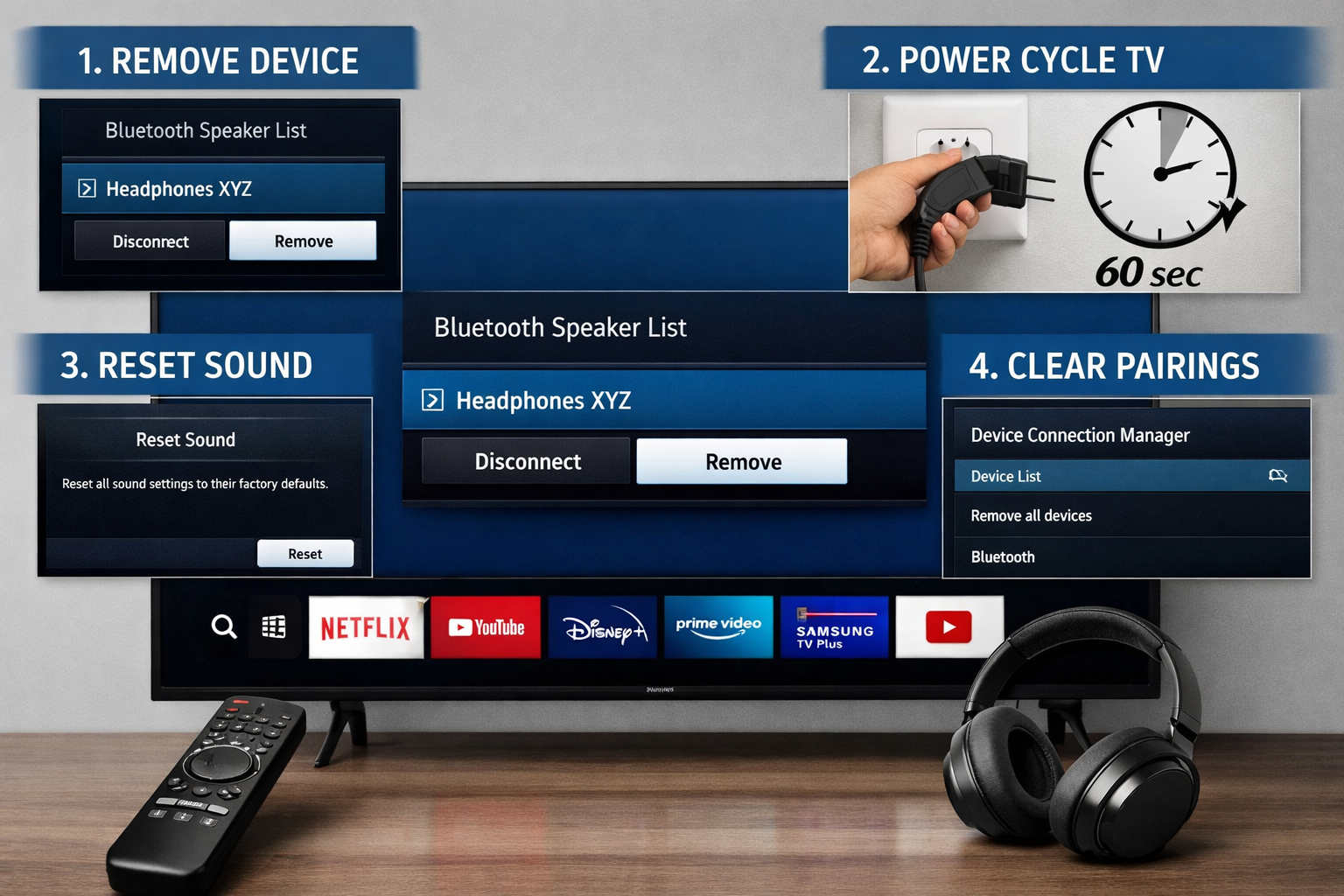
If your wireless headphones won’t connect, your soundbar keeps dropping audio, or your Samsung TV refuses to detect a Bluetooth device it worked with yesterday, you’re not alone. Knowing how to reset Bluetooth on Samsung Smart TV can save you a surprising amount of frustration.
Bluetooth issues on smart TVs are usually software-related. A small glitch in the TV’s memory, a corrupted pairing profile, or a conflict between previously connected devices can disrupt the connection. The good news is that in most cases, you don’t need technical support or a service visit. A proper reset usually fixes the problem in minutes.
Below, you’ll find practical, clear steps to reset Bluetooth settings on your Samsung Smart TV — along with deeper troubleshooting tips that work across most models.
Why You Might Need to Reset Bluetooth on a Samsung TV
Before jumping into the steps, it helps to understand what “resetting Bluetooth” actually means.
Samsung smart TVs don’t have a single “Reset Bluetooth” button. Instead, Bluetooth resets happen through:
- Clearing paired devices
- Restarting the TV properly
- Resetting sound settings
- Performing a full network or factory reset (in rare cases)
Bluetooth connections rely on saved pairing data. If that data becomes corrupted, the TV may:
- Fail to detect devices
- Show “Device not supported” errors
- Disconnect randomly
- Connect but produce no audio
Resetting clears that stored connection data and forces the TV to start fresh.
Quick Bluetooth Reset (Works in Most Cases)
If you just want the fastest solution, try this first.
Step 1: Remove the Connected Device
- Press the Home button on your Samsung remote.
- Go to Settings.
- Select Sound.
- Choose Sound Output.
- Select Bluetooth Speaker List.
- Highlight the connected device.
- Select Remove or Disconnect.
Now restart the TV and reconnect the device from scratch.
This alone fixes most Bluetooth issues.
How to Reset Bluetooth on Samsung Smart TV (Full Method)
If removing the device doesn’t work, follow these deeper reset steps.
1. Power Cycle the TV (Proper Restart)
Many people skip this step, but it matters.
Simply turning the TV off with the remote doesn’t fully reset the system.
Instead:
- Turn off the TV.
- Unplug it from the wall outlet.
- Wait at least 60 seconds.
- Press and hold the TV’s physical power button (if available) for 10 seconds.
- Plug it back in and turn it on.
This clears temporary memory and refreshes internal Bluetooth modules.
2. Reset Sound Settings
If Bluetooth audio isn’t working properly, resetting the sound settings can help.
- Go to Settings.
- Select Sound.
- Choose Expert Settings.
- Select Reset Sound.
This restores audio-related configurations without affecting apps or picture settings.
3. Check Bluetooth Compatibility
Not all Samsung TVs support Bluetooth audio.
Older models may require:
- A Samsung Smart Remote (Bluetooth-enabled)
- A Bluetooth USB adapter (for very old models)
- External streaming devices
You can check support by going to:
Settings → Sound → Sound Output
If you see “Bluetooth Speaker List,” your TV supports Bluetooth audio.
If not, it may not be built-in.
How to Clear All Paired Bluetooth Devices
If your TV has multiple saved devices and keeps auto-connecting to the wrong one, clearing everything can help.
- Go to Settings.
- Select General.
- Choose External Device Manager.
- Open Device Connection Manager.
- Select Device List.
- Remove each paired device manually.
This forces the TV to forget every previous connection.
Factory Reset (Last Resort Option)
If nothing else works, a factory reset can reset Bluetooth along with all system settings.
Be aware: this erases apps, Wi-Fi settings, and account logins.
To factory reset:
- Go to Settings.
- Select General.
- Choose Reset.
- Enter your PIN (default is 0000 unless changed).
- Confirm reset.
After rebooting, set up your TV again and reconnect your Bluetooth devices.
Factory resets are rarely needed unless there’s a deeper software issue.
Common Bluetooth Problems and Fixes
Sometimes the issue isn’t the TV at all. Here’s how to narrow it down.
Bluetooth Device Not Showing Up
- Make sure the device is in pairing mode.
- Keep it within 3–5 feet of the TV during pairing.
- Turn off other nearby Bluetooth devices to avoid interference.
- Restart both the TV and the Bluetooth device.
Headphones especially can appear “invisible” if they’re still connected to a phone.
Bluetooth Keeps Disconnecting
Interference is usually the culprit.
Possible causes:
- Wi-Fi router placed too close to the TV
- Microwave ovens (yes, really)
- Multiple wireless devices competing for signal
Try moving the router slightly farther away or switching Wi-Fi to 5 GHz if available.
Audio Delay (Lip Sync Issues)
Bluetooth audio naturally has slight latency.
On Samsung TVs, you can adjust:
Settings → Sound → Expert Settings → Digital Output Audio Delay
If you’re using Bluetooth headphones for movies, a small delay adjustment usually fixes sync problems.
Model Differences to Be Aware Of
Samsung’s interface varies slightly between:
- Tizen OS models (2016–present)
- Older Smart Hub versions
- Basic LED TVs with limited smart features
The menu names may differ slightly, but the core path usually includes:
Settings → Sound → Bluetooth Speaker List
If you can’t find Bluetooth options at all, check your TV model number on Samsung’s official support site.
When Bluetooth Reset Won’t Fix the Problem
There are rare cases where resetting Bluetooth on a Samsung Smart TV won’t solve the issue.
Possible causes include:
- Outdated TV firmware
- Faulty Bluetooth hardware module
- Corrupted system software
To check for updates:
- Go to Settings.
- Select Support.
- Choose Software Update.
- Select Update Now.
Keeping firmware updated prevents many connection issues.
If Bluetooth still doesn’t work after updates and a factory reset, hardware failure is possible — though not common.
Practical Tips From Experience
Over the years, one pattern shows up repeatedly: the issue is usually saved pairing data.
Samsung TVs tend to auto-reconnect to the last device used. If that device is off, out of range, or connected elsewhere, the TV may appear “broken” when it’s simply trying to connect to something unavailable.
Another common oversight is forgetting to remove the device from the TV before trying to reconnect. Simply re-pairing without removing the old profile often fails.
A clean slate almost always works better than repeated pairing attempts.
FAQ: Resetting Bluetooth on Samsung Smart TVs
Why doesn’t my Samsung TV have a Bluetooth option?
Not all models support Bluetooth audio. Check under Sound Output for “Bluetooth Speaker List.” If it’s missing, your model may not support it natively.
How do I reconnect my Bluetooth headphones after resetting?
Put the headphones in pairing mode, go to Sound Output, open Bluetooth Speaker List, and select your device from the available list.
Will resetting Bluetooth delete my apps?
No. Removing Bluetooth devices or resetting sound settings won’t delete apps. Only a full factory reset erases installed apps and accounts.
Why does my TV connect but there’s no sound?
Check that the Bluetooth device is selected under Sound Output. Also verify volume levels on both the TV and the device itself.
Can I connect multiple Bluetooth devices at once?
Most Samsung TVs allow only one Bluetooth audio device at a time. Some newer models support dual audio, but it depends on the specific model.
Resetting Bluetooth on a Samsung Smart TV is usually straightforward: start by removing the connected device, power cycle the TV, reset sound settings if needed, and clear any paired devices. These steps resolve most connectivity issues without requiring a full factory reset. Consistently keeping devices updated and removing old pairings can prevent future problems and keep Bluetooth connections smooth.